Last updated: 27 September 2026
Short answer: follow the 3-2-1 rule. Keep three copies of your important files, on two different kinds of storage, with one copy somewhere other than your home or office. In practice that means your working files, an automatic backup to an external drive using Time Machine (Mac) or File History (Windows), and an automatic cloud backup service such as Backblaze. Setting it up takes about 30 minutes, and then it runs by itself.
What is the 3-2-1 backup rule?
It is the most widely recommended backup approach, and the US Cybersecurity and Infrastructure Security Agency describes it in its guide to data backup options:
- 3 copies of every important file: the original plus two backups.
- 2 different types of storage, so one kind of failure cannot take out everything.
- 1 copy offsite, away from your home or office, in case of fire, flood or theft.
For a one-person business, that maps neatly onto a laptop, an external drive and a cloud backup.
| Copy | Where it lives | Protects against |
|---|---|---|
| 1. Working files | Your laptop or desktop | Nothing on its own |
| 2. Local backup | External SSD or hard drive, backed up automatically | Drive failure, accidental deletion, a bad update |
| 3. Offsite backup | Cloud backup service | Theft, fire, flood, losing both the laptop and the drive together |
Isn't cloud sync the same as a backup?
No, and this catches a lot of people out. OneDrive, iCloud Drive, Dropbox and Google Drive sync files: they keep the same copy everywhere. That is convenient, but if you delete a file, or ransomware encrypts it, the change syncs everywhere too.
These services do keep some version history and a recycle bin for a limited time, which helps. But a real backup keeps separate, older copies that your everyday changes do not overwrite. Use sync for convenience and a backup for safety.
What do I need?
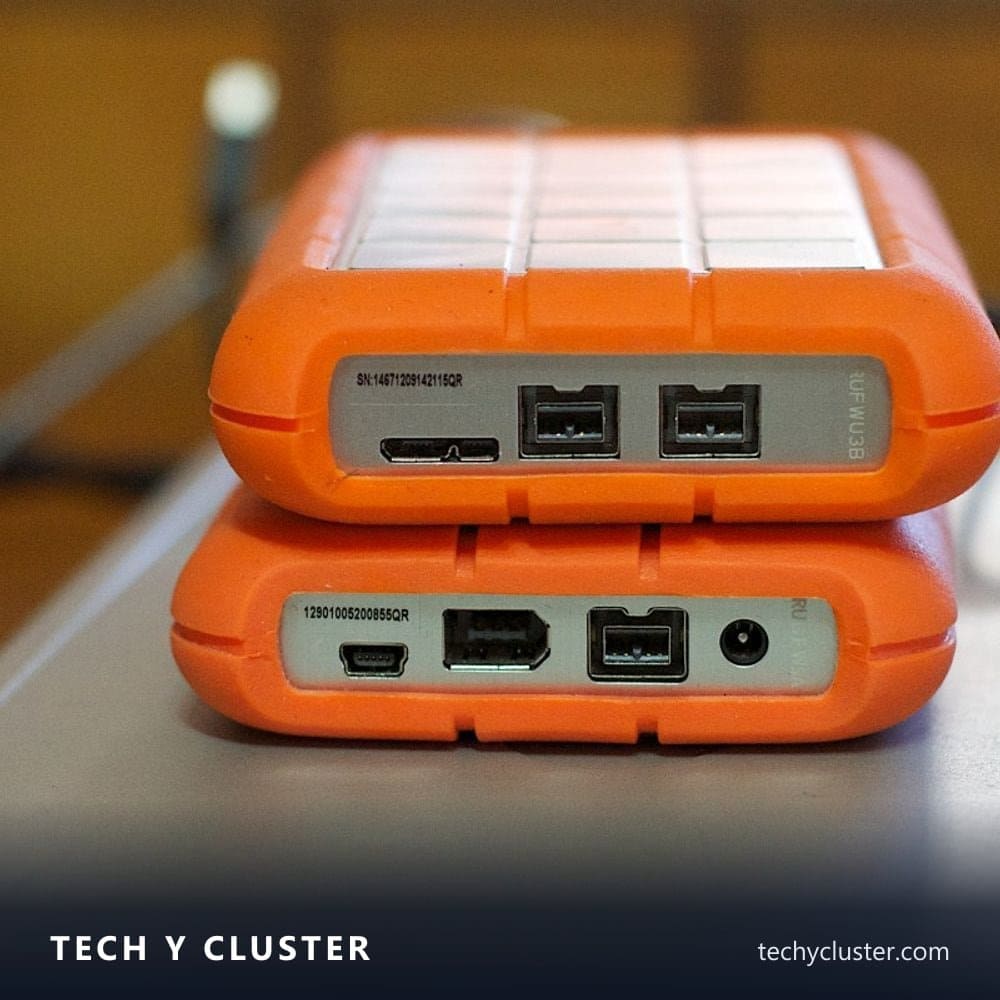
- An external drive at least twice the size of the data you want to protect. An SSD is faster and tougher; a hard drive is cheaper per terabyte.
- A cloud backup service. Backblaze Personal Backup is $9 a month or $99 a year for unlimited backup of one computer. iCloud+ with 2 TB costs $9.99 a month in the US, and Microsoft 365 Personal includes 1 TB of OneDrive, but remember those are sync services first.
- 30 minutes, plus time for the first backup to run in the background.
How do I set it up in 30 minutes?
Minutes 0 to 5: decide what matters. Make a quick list: documents, client files, photos, invoices and accounts, email if it is stored locally, and any project folders outside your Documents folder. Everything else, like apps and the operating system, can be reinstalled.
Minutes 5 to 15: set up the local backup.
On a Mac:
- Plug in the external drive.
- Open System Settings → General → Time Machine and choose Add Backup Disk.
- Select the drive and tick Encrypt Backup, then set a password you store in your password manager.
Time Machine then backs up automatically every hour while the drive is connected and keeps older versions as space allows.
On Windows 11:
- Plug in the external drive.
- Open Control Panel → System and Security → File History, choose the drive and turn File History on.
- Under Advanced settings, set how often it saves copies and how long it keeps them.
Windows also has the Windows Backup app, under Settings → Accounts → Windows backup, which backs up folders and settings to OneDrive. That is useful for moving to a new PC, but it relies on OneDrive, so keep File History for a true local, versioned copy.
Minutes 15 to 25: set up the offsite backup. Install your cloud backup service, sign in and let it choose your user folders by default. Add any project folders from your list that live elsewhere. If the service offers a private encryption key, consider it, but understand that losing that key means losing access to your backup.
Minutes 25 to 30: test a restore. Pick one file, delete a copy of it, and restore it from each backup. A backup you have never restored from is a hope, not a plan.
The first backups can take hours or days depending on how much data you have and your upload speed. Leave the computer on and connected while they run. If your PC is slow even before the backup starts, work through how to speed up an old Windows PC without buying anything first.
How do I protect backups from ransomware?
Ransomware tries to encrypt everything it can reach, including connected drives. Three habits help:
- Keep version history. Time Machine, File History and most cloud backup services keep older versions, so you can restore files from before the attack.
- Don't leave the external drive permanently connected if you can avoid it. Plug it in daily or a few times a week, let the backup run, then disconnect it.
- Keep the offsite copy separate. A cloud backup that ransomware on your computer cannot directly overwrite is your last line of defence.
What about a small business?
The same setup scales to a small team, with a few additions:
- Know where every important file lives. Client work in email attachments, shared drives and chat tools is easy to forget.
- Check what your software providers back up. Accounting, email and website hosting services may keep backups, but read how long they keep them and whether you can restore a single item.
- Encrypt anything with client data. Encrypted backups keep a lost drive from becoming a data breach, which matters under data protection law; I summarised the rules in what engineers should know about data privacy laws in 2026.
- Write down how to restore. If you are unavailable, someone else should be able to get the business running from the backup.
If you are buying a new laptop soon, plan storage with backups in mind. I covered how much storage and memory engineering work really needs in how to pick a laptop for engineering work in 2026.
How often should I check my backups?
Set a monthly reminder to spend five minutes on it:
- Confirm the last backup date in Time Machine or File History and in your cloud service.
- Restore one random file from each.
- Check the external drive is not nearly full.
Once a year, check that the external drive is still healthy, and replace it every few years; drives do not last forever.
Related gear
- Samsung T7 Shield 2TB on Amazon — Related gear
Disclosure: some links in this article are affiliate links or our editor's own courses and book. If you buy through them, TechyCluster or its editor may earn money at no extra cost to you. This does not influence what we cover or how we cover it. As an Amazon Associate, TechyCluster earns from qualifying purchases.
FAQ
How much does a good backup setup cost?
An external drive is a one-off cost, and a cloud backup service such as Backblaze is $9 a month or $99 a year for one computer. For most people and small businesses that is far less than the cost of losing a single week of work.
Is an external hard drive enough on its own?
No. It protects against a failed laptop or accidental deletion, but not against theft, fire or ransomware that reaches both devices. That is why the 3-2-1 rule includes an offsite copy.
Should I encrypt my backups?
Yes, especially if they contain client or personal data. Time Machine offers encryption when you set up the drive, and Windows users can encrypt an external drive with BitLocker on editions that support it. Store the password or recovery key safely, outside the backup itself.
How long does the first cloud backup take?
It depends on how much data you have and your upload speed. A few hundred gigabytes can take a day or more on a typical home connection. Later backups are much faster because only changed files are uploaded.